How to Back Up Your Computer: Windows, Mac, and Cloud Options Compared
Most people think about backups right after losing something important. This guide is for getting that protection in place before the bad day arrives. It covers the 3-2-1 rule – the professional standard for backup strategy – and the specific tools and steps to implement it on Windows and Mac, with and without spending money.
The 3-2-1 Rule: Why It Matters
The 3-2-1 backup strategy is simple: keep 3 copies of your data, on 2 different types of storage, with 1 copy offsite. In practice this means your original files, a local backup on an external drive, and a cloud backup. This protects you against hardware failure (local backup handles it), theft or fire (offsite cloud handles it), and accidental deletion (both handle it with version history).
You do not need all three immediately, but aiming for this setup gives you the best protection. At minimum, have at least one copy somewhere other than your main drive.
Windows: Built-In Backup Options
File History
Windows 10 and 11 include File History, which continuously backs up files in your user folders (Documents, Pictures, Desktop, Music, Videos) to an external drive. It keeps multiple versions of each file, so you can recover a document from last week even if you saved over it yesterday.
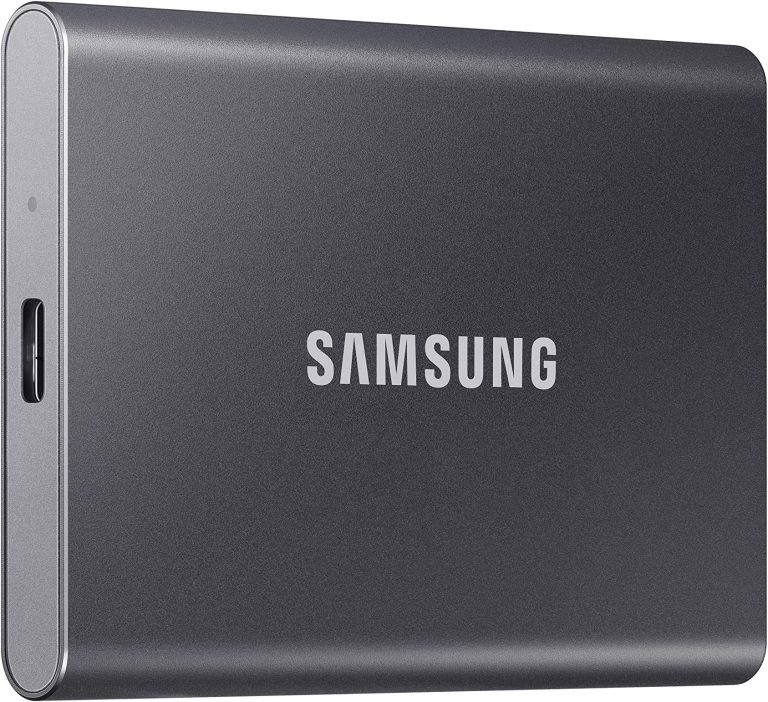
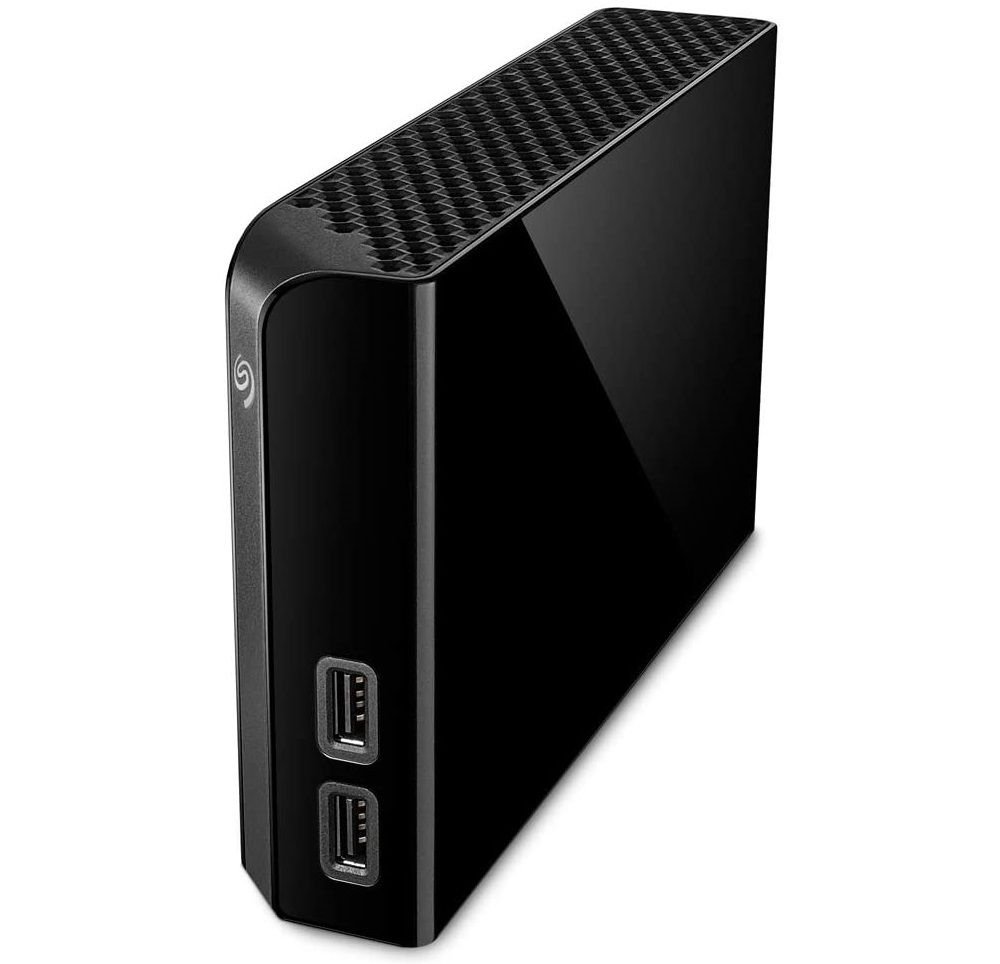
To set it up: connect an external drive, go to Settings > Update & Security > Backup (Windows 10) or Settings > System > Storage > Backup options (Windows 11), and select the external drive. Set the frequency to every hour and choose how long to keep old versions. This is the easiest automated local backup you can set up in under two minutes.
System Image Backup (Full Disk Backup)
File History only backs up your files – not Windows itself, installed apps, or settings. If your drive fails completely, you would need to reinstall Windows and all your software before restoring files. A system image captures everything: the OS, apps, settings, and files in a single snapshot.
To create one: search for Control Panel > Backup and Restore (Windows 7) – yes, it is still there in Windows 10 and 11. Click Create a system image and select your external drive as the destination. A 256 GB drive with Windows installed typically produces a 50-80 GB image. Create a new system image after major changes (new software installs, Windows updates).
Macrium Reflect Free (Third-Party, Windows)
For more control over Windows backups, Macrium Reflect Free is the go-to recommendation. It does full disk images, incremental backups (only backing up what changed since the last full backup), and scheduled automatic runs. It also creates a rescue disc so you can restore a backup even when Windows will not boot. The free version covers everything most home users need.
Mac: Built-In Backup Options
Time Machine
Time Machine is Apple’s built-in backup system and it is genuinely excellent. Connect an external drive, open System Settings > General > Time Machine, select the drive, and Time Machine handles the rest automatically. It backs up hourly for the past 24 hours, daily for the past month, and weekly for everything older – and manages disk space by deleting the oldest backups when the drive fills up.
Time Machine backs up everything: system files, apps, settings, and your documents. If you need to restore the whole Mac after a drive failure, boot from macOS Recovery, choose Restore from Time Machine Backup, and point it at your backup drive. It restores the machine to the exact state at the backup point.
iCloud Drive
iCloud Drive syncs your Desktop and Documents folders to iCloud automatically when you enable it in System Settings > Apple ID > iCloud > iCloud Drive > Desktop & Documents Folders. This is sync, not backup – if you delete a file on Mac, it deletes from iCloud too. But it does give you 30 days to recover deleted files from icloud.com, which covers accidental deletion. Free storage is 5 GB; 50 GB costs $0.99/month, 200 GB is $2.99/month.
Cloud Backup Services
Local backups protect against hardware failure but not against theft, fire, or flood. A cloud backup service running in the background adds the offsite copy your 3-2-1 strategy needs.
| Service | Price | Storage | Platform |
|---|---|---|---|
| Backblaze Personal Backup | $9/month | Unlimited | Windows, Mac |
| iDrive | $69.65/year (5 TB) | 5 TB | Windows, Mac, iOS, Android |
| OneDrive (Microsoft 365) | $70/year | 1 TB | Windows, Mac |
| Google One | $3/month | 100 GB | Windows, Mac, Android, iOS |
Backblaze is the go-to recommendation for most people – unlimited storage for $9/month with continuous background backup. It runs silently, backs up all drives connected to your computer, and has a solid restoration process including shipping a hard drive with your data if you need to restore a large amount quickly.
What to Back Up vs. What to Skip
Always back up: Documents, photos, videos, financial files, project files, email archives, browser bookmarks and passwords (use a password manager with its own cloud sync for this).
Skip or low-priority: Windows/macOS system files (they reinstall from scratch), application installers you can re-download, and media files you own on streaming services. Focus storage and backup bandwidth on files that cannot be recovered if lost.
Test Your Backup
A backup you have never tested is one you cannot trust. Every few months, try restoring a specific file from your backup to confirm it works. For a full system backup, verify the backup software can boot into its recovery environment. Discovering a corrupt backup during a real data loss incident is one of the worst tech experiences you can have.
If you are considering an SSD upgrade as part of protecting your data – cloning your drive before and keeping the original as a backup – see our best NVMe SSDs in 2026 for current drive recommendations.