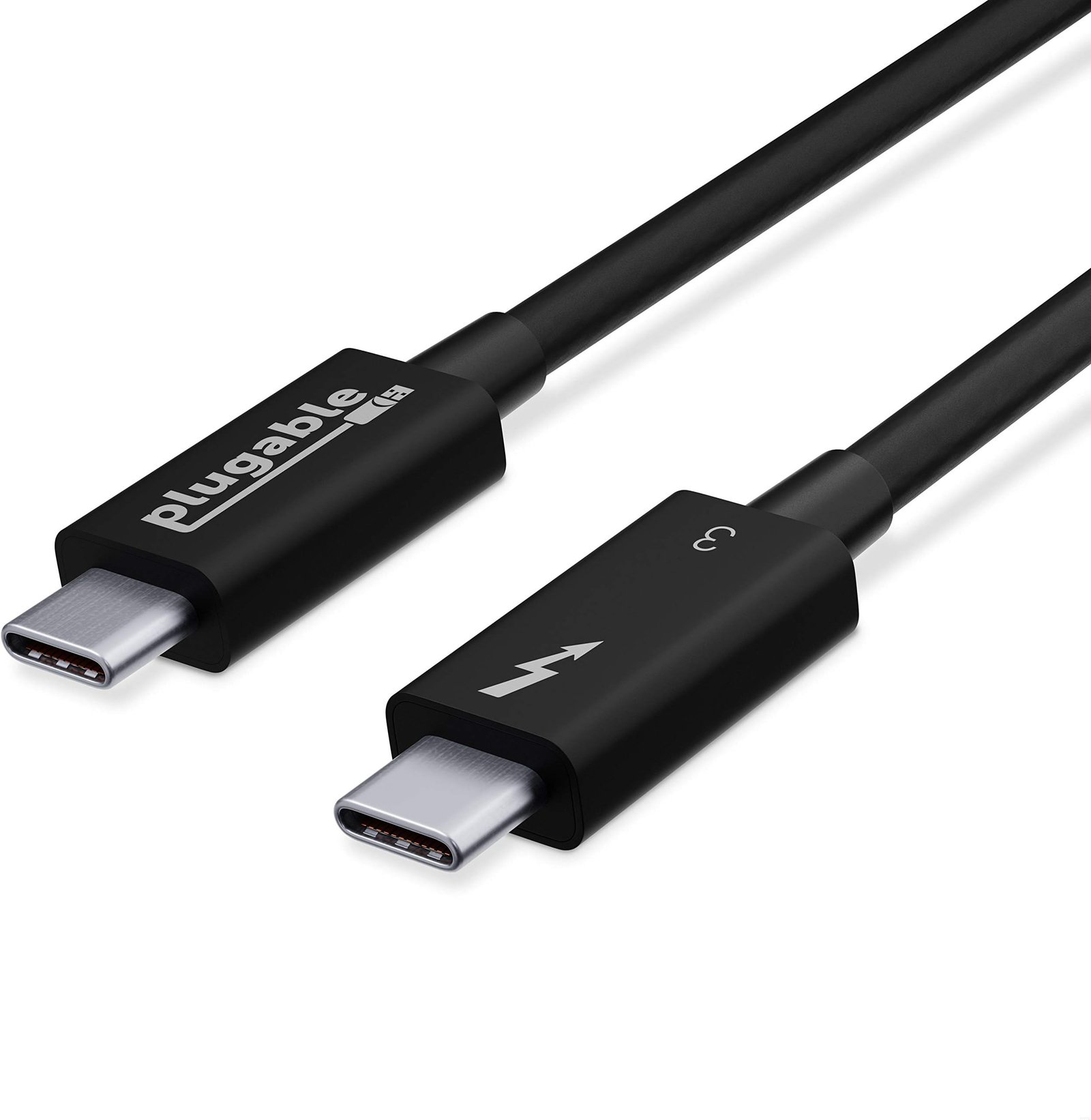
USB-C is the universal connector that replaced dozens of port types – or was supposed to. In practice, a single USB-C port can be five different things: a basic charging port, a USB 3.2 data port, a Thunderbolt 4 port, an HDMI output, or a DisplayPort output. Two identical-looking cables can deliver wildly different speeds. This confusion is not accidental – it reflects how multiple independent standards converged on the same physical connector. This explainer untangles it.
USB-C Is a Connector Shape, Not a Standard
This is the most important thing to understand. “USB-C” describes the physical shape of the connector – the reversible oval plug. It says nothing about what protocols run through the cable or what the port supports. A USB-C port on a $15 phone charger and a Thunderbolt 4 port on a MacBook Pro look identical from the outside but have dramatically different capabilities.
The protocols that can run through USB-C connectors include:
USB 2.0 (480 Mbps) – bare minimum, found on budget chargers and some phone cables
USB 3.2 Gen 1 (5 Gbps) – common on mid-range devices
USB 3.2 Gen 2 (10 Gbps) – faster data transfers, common on recent laptops and SSDs
USB 3.2 Gen 2×2 (20 Gbps) – uncommon, found on some high-end external SSDs
USB4 (40 Gbps) – the current USB top standard, uses the Thunderbolt 3 specification
Thunderbolt 3 (40 Gbps) – Intel’s protocol, superset of USB4, adds display and daisy-chaining
Thunderbolt 4 (40 Gbps) – stricter minimum specifications than TB3, more consistent behavior
Thunderbolt 5 (120 Gbps) – the current Thunderbolt maximum, for demanding pro workloads
DisplayPort Alt Mode – carries DisplayPort video signal over USB-C
HDMI Alt Mode – carries HDMI signal (less common)
Power Delivery (PD) – defines charging wattage up to 240W
USB Versions: What the Speed Numbers Mean
USB standards have confusing naming history, but the relevant speeds for current hardware:
Marketing Name
Technical Name
Max Speed
USB 3.0 / USB 3.1 Gen 1
USB 3.2 Gen 1
5 Gbps
USB 3.1 Gen 2 / USB 3.2
USB 3.2 Gen 2
10 Gbps
USB 3.2 Gen 2×2
USB 3.2 Gen 2×2
20 Gbps
USB4 Gen 2×2
USB4 Gen 2×2
20 Gbps
USB4 Gen 3×2
USB4 Gen 3×2
40 Gbps
These speeds are theoretical maximums. Real-world transfer speeds on a 10 Gbps USB port with a fast external SSD reach around 900-950 MB/s (7.2-7.6 Gbps effective) – the protocol overhead and drive speed cap the theoretical maximum.
Thunderbolt: Intel’s Superset Protocol
Thunderbolt is a protocol developed by Intel (in collaboration with Apple) that combines PCIe (Peripheral Component Interconnect Express) and DisplayPort signals over a USB-C connector. Thunderbolt does everything USB does, plus:
Carries DisplayPort video natively (not just Alt Mode – it is a first-class feature)
Carries PCIe signals for external GPUs (eGPUs) and high-speed external NVMe enclosures
Supports daisy-chaining – up to six Thunderbolt devices in a chain from a single port
Enables higher-bandwidth docking stations with multiple simultaneous 4K displays
Thunderbolt 3 vs Thunderbolt 4
Both Thunderbolt 3 and Thunderbolt 4 operate at 40 Gbps. Thunderbolt 4 added stricter minimum requirements: it must support two external 4K displays (Thunderbolt 3 allowed single 4K support in lower configurations), it must support PCIe at 32 Gbps (not 16 Gbps as in some Thunderbolt 3 implementations), and it requires Intel VT-d-based DMA protection for security. In practice, Thunderbolt 4 means more consistent capabilities across devices – you can trust that any Thunderbolt 4 device will work with any Thunderbolt 4 dock.
Thunderbolt 5
Thunderbolt 5 uses USB4 v2 at 80 Gbps bidirectional, with asymmetric mode (Bandwidth Boost) pushing 120 Gbps in one direction for display-heavy workloads. This enables three external 4K displays, 8K display support, and the bandwidth for eGPUs to be more practical. Intel’s Lunar Lake (Core Ultra 200V) and Arrow Lake CPUs support Thunderbolt 5. Apple’s M-series Macs use Apple’s own high-speed protocols rather than Thunderbolt 5, though compatibility with Thunderbolt 4 accessories is maintained.
Power Delivery: Why Charging Speeds Vary
USB Power Delivery (USB PD) is the standard that defines how much power flows over USB-C for charging. The maximum wattage a port delivers depends on what both the charger and the device support:
5W – basic USB, slow charging for phones
18W – older fast charging standard, common in bundled Apple chargers
30W – charges MacBook Air at full speed, iPhone 15 Pro at ~27W effectively
65W – handles most Windows laptops at full speed
96-100W – required for MacBook Pro 14-inch full-speed charging
140W – MacBook Pro 16-inch, some high-performance Windows laptops
240W – the new USB PD 3.1 maximum, for desktop replacements
A charger provides up to its rated wattage; the device draws only what it needs. Plugging a 140W charger into an iPhone is safe – the iPhone draws 27W and ignores the rest.
How to Tell What Your USB-C Port Supports
The fastest way: look for the Thunderbolt symbol (a lightning bolt icon) next to the port – that confirms Thunderbolt support. USB4 ports may have a “40” number. A plain USB-C symbol with no additional marking is USB 3.x at best, possibly USB 2.0 at worst.
Check your device’s spec page on the manufacturer’s website for the exact protocol and wattage each port supports – not all ports on the same device are equal. Some MacBooks have a MagSafe charging port plus two Thunderbolt 4 ports and a headphone jack; some Windows laptops have one full-speed Thunderbolt 4 USB-C and one USB 3.2 Gen 1 USB-C that looks identical.
For choosing the right hub or dock for your specific laptop’s ports, see our best USB-C hubs and docking stations guide which specifies which docks require Thunderbolt ports versus working with standard USB-C.
Wi-Fi 6, Wi-Fi 6E, and Wi-Fi 7 all promise faster wireless speeds, but the differences matter for what you actually get at home. This explainer breaks down what changed between each generation and who should care.
CPU spec sheets throw numbers at you – 16 cores, 32 threads, 5.7 GHz boost clock. This explainer translates what those numbers mean for actual performance, when more cores help, and when clock speed matters more.
NFC enables Apple Pay, contactless credit cards, transit cards, and device pairing. This explainer covers how NFC works, why it requires physical proximity, and where it is used beyond just payments.
Bluetooth is in almost every device you own, but most people have no idea why it sometimes drops, why range varies so much, or what the version number on the spec sheet actually means. This explainer covers all of it.
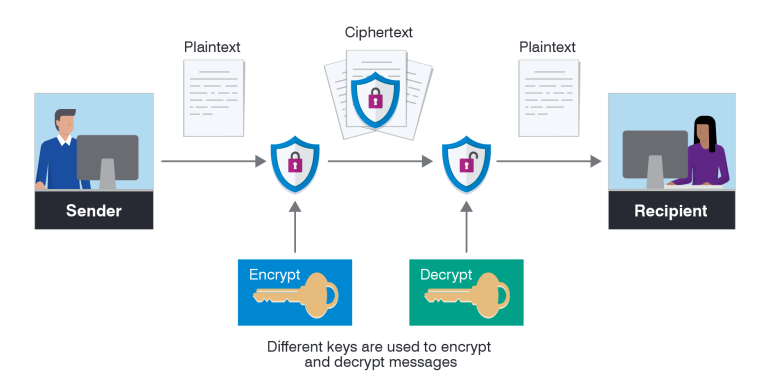
Encryption is mentioned in privacy policies, VPN marketing, and security news. This explainer covers what encryption actually does, how HTTPS protects your browser traffic, and what “end-to-end encryption” means for messaging apps.
OLED appears in the spec sheets of premium phones, TVs, laptops, and monitors. This explainer covers how OLED actually works, why it produces better blacks, and where LCD still has advantages.