How to Extend iPhone Battery Life: 14 Settings to Change Right Now
iPhone battery life varies dramatically based on how the phone is configured. Some settings that iOS enables by default – like always-on background activity for every app – drain the battery in ways you never notice. This guide covers 14 specific settings changes that collectively can add 1-3 hours of screen-on time to your day, depending on your usage patterns.
1. Check Battery Usage by App
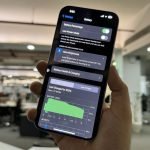
Before adjusting anything, find out what is actually draining your battery. Go to Settings > Battery and scroll down to see battery usage broken down by app over the last 24 hours and 10 days. If one app is consuming 30-40% of your battery when you barely use it, that is your first target. Social media apps, navigation, and email clients with constant push sync are frequent offenders.
2. Enable Low Power Mode Earlier
Low Power Mode kicks in automatically at 20% battery, but you can enable it manually at any time – even at 100%. It reduces background activity, mail fetch, automatic downloads, and some visual effects. You can add it to Control Center (Settings > Control Center) for one-tap access. On a day when you know you will be away from a charger, enabling it from the start can extend battery life by 20-30%.
3. Reduce Screen Brightness
The display is the single biggest battery consumer on any phone. A few degrees of brightness reduction have a measurable impact. Make sure Auto-Brightness is on (Settings > Accessibility > Display & Text Size > Auto-Brightness). This lets the iPhone adjust brightness based on ambient light rather than blasting full brightness indoors.
4. Adjust Always-On Display (iPhone 14 Pro and Later)
If you have an iPhone 14 Pro, 15 Pro, or iPhone 16 series, the Always-On Display adds a constant low-level drain. If you are aggressively managing battery, go to Settings > Display & Brightness > Always On Display and turn it off. You will lose the glanceable lock screen but gain meaningful battery savings throughout the day.
5. Turn Off Background App Refresh
Background App Refresh lets apps update their content while you are not using them. Useful for apps like Maps or news, but most apps do not need it. Go to Settings > General > Background App Refresh and either turn it off entirely, or toggle it off app by app. Social media apps especially do not need this – they refresh the moment you open them.
6. Audit Location Services
Location services are a significant battery drain, particularly apps that run location checks constantly in the background. Go to Settings > Privacy & Security > Location Services and review each app. Change any app set to “Always” to “While Using” unless you specifically need background location (like a tracking app or navigation). The apps most likely to have “Always” enabled without needing it: weather apps, social media, shopping apps.
7. Switch from Push to Fetch Email
Push email wakes your phone every time a new message arrives, even at 3 AM. Fetch checks on a schedule you define. Go to Settings > Mail > Accounts > Fetch New Data and switch from Push to Fetch, then set the interval to 15 or 30 minutes. If you use Gmail in the Gmail app, turn off notifications for non-critical labels. For most people, checking email every 15 minutes rather than instantly makes zero practical difference.
8. Disable Raise to Wake
Raise to Wake turns on your screen every time you pick up or shift your phone. If you are commuting or carrying your phone in a bag that moves, this adds up. Turn it off at Settings > Display & Brightness > Raise to Wake. You will still see the time by tapping the screen once or pressing the side button.
9. Shorten Auto-Lock Time
The longer your screen stays on after you set the phone down, the more battery it wastes. Go to Settings > Display & Brightness > Auto-Lock and set it to 30 seconds or 1 minute. The default 2-minute setting burns a surprising amount of battery over a full day.
10. Reduce Motion
iOS runs animations for parallax effects on the home screen, app open and close transitions, and notification popups. Reducing these saves a small amount of GPU work throughout the day. Go to Settings > Accessibility > Motion > Reduce Motion and turn it on. The phone still animates, but uses simpler cross-fade transitions instead of the full 3D zoom.
11. Turn Off Wi-Fi Calling When Not Needed
Wi-Fi Calling lets calls route through Wi-Fi in poor cellular areas. When you have good signal, it is an unnecessary radio to keep active. Check it at Settings > Phone > Wi-Fi Calling. Similarly, if you rarely use Bluetooth (no wireless earbuds or car connectivity), toggling it off saves a small but continuous drain.
12. Disable Notifications for Unimportant Apps
Every notification wakes the screen momentarily. Go to Settings > Notifications and audit which apps can send notifications. Most shopping apps, gaming apps, and social media notifications do not need to wake your screen. Disable “Allow Notifications” for anything that does not warrant immediate attention, or change the alert style to “Deliver Quietly” so it goes to Notification Center without lighting the screen.
13. Use Optimized Battery Charging
This is not about draining less – it is about preserving long-term battery health. Settings > Battery > Battery Health & Charging > Optimized Battery Charging learns your charging schedule and avoids holding the battery at 100% for long periods, which accelerates capacity degradation. A battery kept at 100% for 8 hours every night loses capacity faster than one that hits 80% and then charges to 100% just before your alarm.
14. Check Battery Health
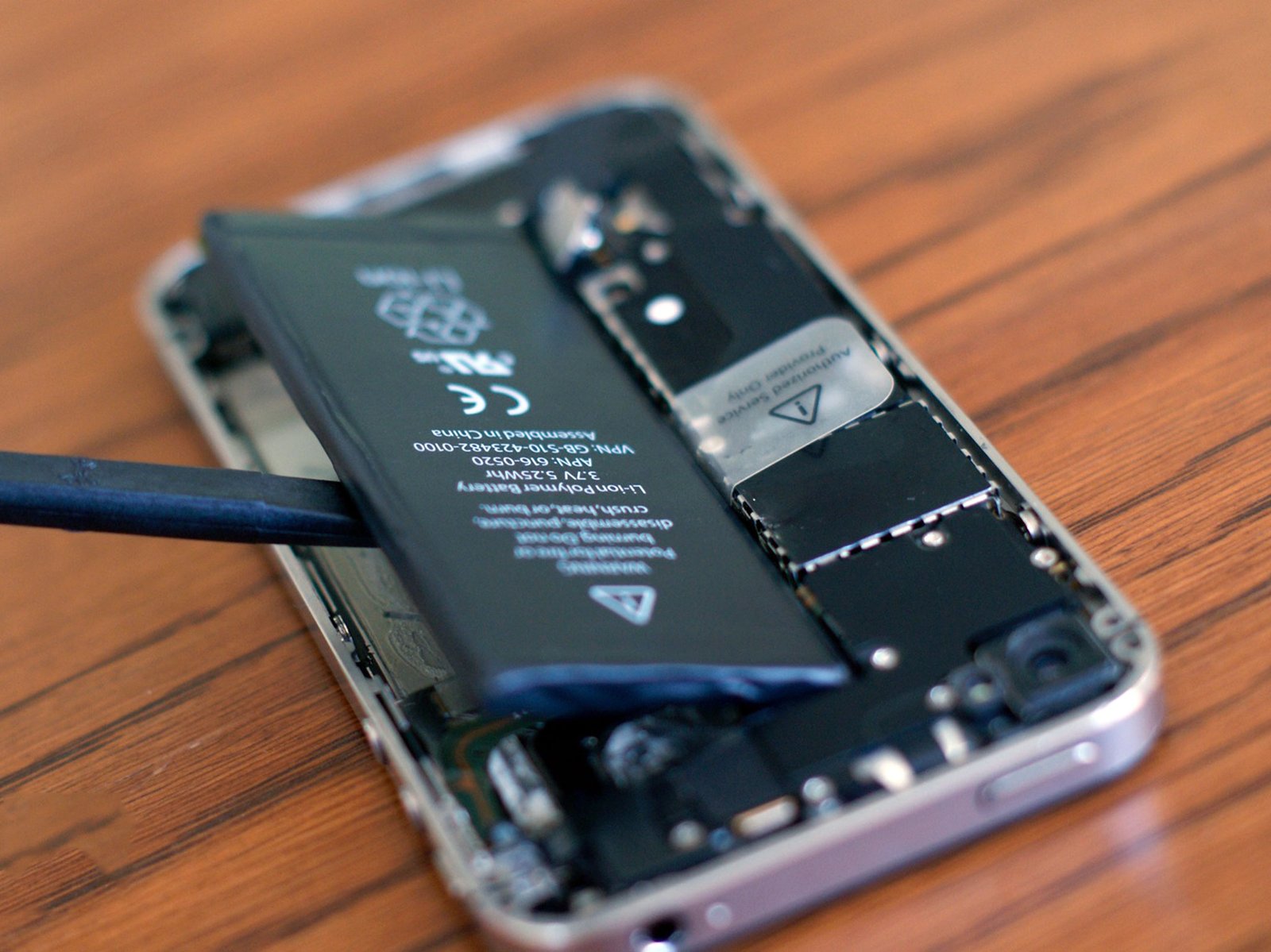
Go to Settings > Battery > Battery Health & Charging. If maximum capacity is below 80%, your battery has degraded significantly and no amount of settings tweaking will restore it to original performance. Apple offers battery replacement for $99 on most iPhone models, which restores full capacity and usually makes the phone feel new again. Third-party shops typically charge $50-$70 for the same job.
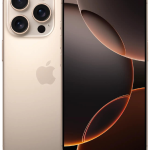
If you are considering a new iPhone partly for battery reasons, our iPhone 16 Pro Max review covers the battery performance improvements in the latest generation, and our best iPhone for the money guide breaks down which models offer the best battery-to-price ratio.