The “iPhone Storage Almost Full” notification interrupts you at the worst times – usually when you are trying to take a photo or install an update. This guide covers 10 methods for recovering storage, ranked roughly by how much space they typically recover, starting with the biggest wins.
Step 1: See What Is Taking Up Space
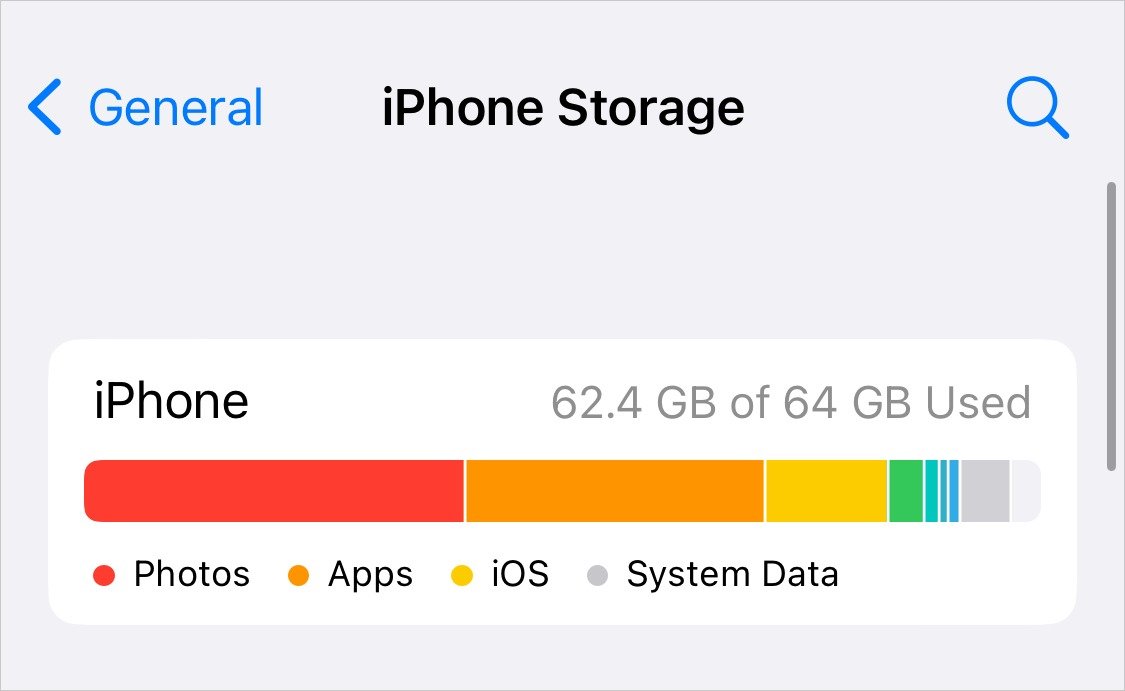
Before deleting anything, go to Settings > General > iPhone Storage. The bar at the top shows your breakdown by category: Apps, Photos, iOS, Messages, and System Data. Scroll down to see every app sorted by storage usage. This tells you exactly where to focus – you might discover a game you forgot about is using 8 GB, or that your Messages app has accumulated 5 GB of attachments.
1. Delete and Re-Download Large Apps
Apps accumulate cached data over time – downloads, images, temporary files – that can balloon their size well beyond the app’s base install. The fastest way to clear this cache is to delete the app entirely and reinstall it fresh. Check the app list in iPhone Storage and look for apps where the “Documents & Data” portion is large relative to the app itself. A podcast app that is 200 MB installed but shows 2 GB in storage has 1.8 GB of cached episodes you can clear this way.
2. Offload Unused Apps
iOS has a feature called Offload Unused Apps that removes the app itself while keeping its documents and data. The app icon stays on your home screen with a small cloud icon; tapping it re-downloads the app and restores your data. Enable auto-offloading at Settings > General > iPhone Storage > Enable under “Offload Unused Apps.” You can also do it manually for individual apps from the same storage screen.
3. Manage Photos and Videos
Photos and videos are typically the largest storage consumers on any phone. A few targeted actions:
Enable iCloud Photos with “Optimize iPhone Storage” at Settings > Photos > iCloud Photos. This uploads full-resolution photos to iCloud and keeps smaller optimized versions on the device, recovering significant storage while keeping all your photos accessible.
Delete duplicates: iOS 16 and later has a Duplicates album in the Photos app that identifies near-identical photos and lets you merge them.
Delete screenshots – most people screenshot things and never look at them again. Filter for screenshots in the Photos app and bulk-delete.
Check Recently Deleted: Photos stay in the Recently Deleted album for 30 days before being permanently removed. Delete them immediately if you are clearing space urgently – go to Photos > Albums > Recently Deleted and select all.
4. Clear Safari Cache
Safari stores cached website data that accumulates over time. Go to Settings > Safari > Clear History and Website Data. This removes browsing history, cookies, and cached files. It signs you out of any websites where you were logged in via Safari, so be ready to log back in. For Chrome or Firefox users, clear the cache from within each app’s settings menu.
5. Clean Up Messages Attachments
The Messages app silently accumulates photos, videos, GIFs, and audio messages sent and received over months and years. Go to Settings > General > iPhone Storage > Messages and look at the breakdown. Tap “Review Large Attachments” to see files sorted by size and delete them. You can also set messages to auto-delete after 30 days or 1 year: Settings > Messages > Keep Messages.
6. Remove Downloaded Music, Podcasts, and Videos
Downloaded content for offline listening or viewing takes up significant space. In Music: go to Settings > Music > Downloaded Music to see and remove downloads. In Podcasts: check Settings > Podcasts and set episodes to delete after playing. In Spotify: go to the app’s settings and remove downloaded playlists. Same for Netflix, Apple TV, and YouTube downloads – each has a Downloads section where you can remove offline content you no longer need.
7. Clear App Caches Individually
Some apps let you clear their cache from within the app. Spotify: Settings > Storage > Clear Cache. Snapchat: Settings > Privacy > Clear Cache. Instagram does not have a built-in cache clear, so the delete-and-reinstall method is the only option there. Check the settings menu of each large app you use for any storage or cache management option.
8. Delete Old Voice Memos
Voice memos recorded over time – especially long ones from meetings or lectures – can take up multiple gigabytes without you realizing it. Open the Voice Memos app and delete anything you do not need. They are not synced to iCloud Photos, so deletion is immediate and permanent.
9. Review and Delete Large Email Attachments
The Mail app does not automatically delete attachments when you delete emails, and the local cache can grow large. Go to Settings > General > iPhone Storage > Mail and check the size. If it is large, you can delete and reinstall the Mail app to clear accumulated cache, or simply remove and re-add your email accounts.
10. The Nuclear Option: Erase and Restore
If storage is critically low and the above steps have not recovered enough, a full erase and restore from backup gets you a clean install with only your actual data – no accumulated app caches or system cruft. Back up to iCloud first, then go to Settings > General > Transfer or Reset iPhone > Erase All Content and Settings. During setup, restore from your iCloud backup. You get back all your apps and data without the accumulated junk.
Long-Term: Buy More iCloud Storage
If you consistently run low on storage despite regular cleanup, 50 GB of iCloud for $0.99/month or 200 GB for $2.99/month is worth considering. With iCloud Photos set to “Optimize Storage,” you can have 100,000 photos without keeping full-resolution copies on your phone. It is cheaper than upgrading to a higher storage model iPhone at next purchase.
If you are running a tight budget and deciding between iPhone models, our best iPhone for the money guide covers which storage tiers actually make sense given iCloud’s pricing.
Screen recording is built into every major operating system – no third-party software needed. This guide covers the built-in tools on Windows, Mac, iPhone, and Android, plus when it is worth using dedicated software instead.
Upgrading RAM is one of the easiest and cheapest ways to boost PC performance. This guide covers how to check what RAM your PC supports, how to buy the right kit, and how to physically install it in under 15 minutes.
Ad blocking speeds up page loads, reduces tracking, and cuts data usage. This guide covers browser extensions, iOS and Android ad blocking, and Pi-hole for network-wide blocking that covers every device at once.
VPNs are not just for IT departments. This guide explains what a VPN actually does, which situations warrant using one, and how to set up a VPN on Windows, Mac, iPhone, and Android in under five minutes.
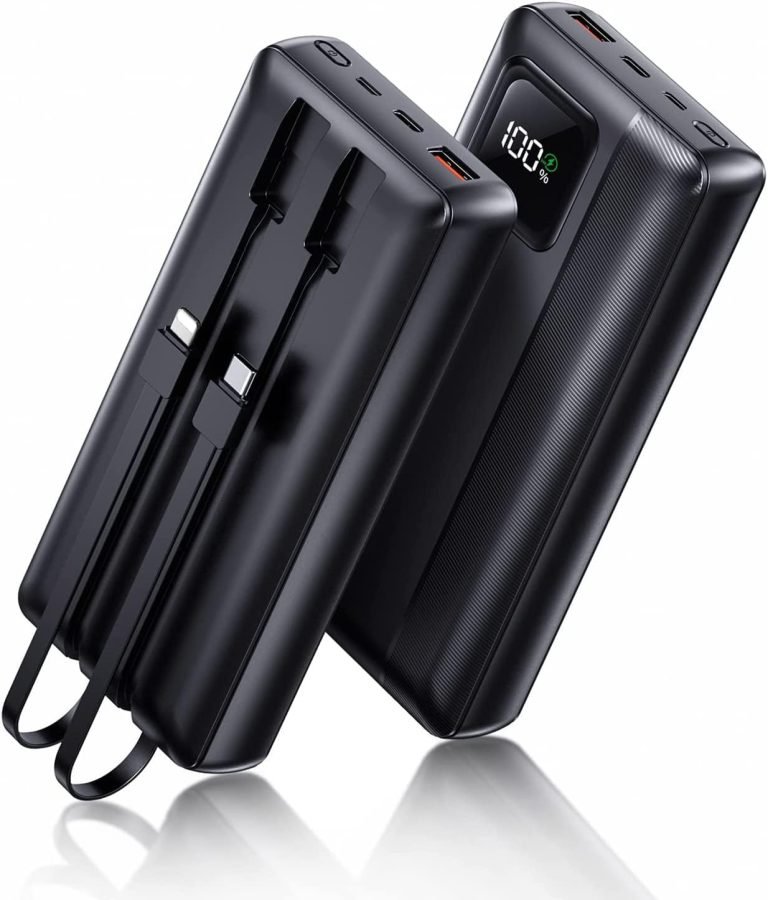
Not all power banks are created equal – capacity, charging speed, size, and pass-through charging vary widely. These are the best portable chargers in 2026 for phones, laptops, and everyday carry.
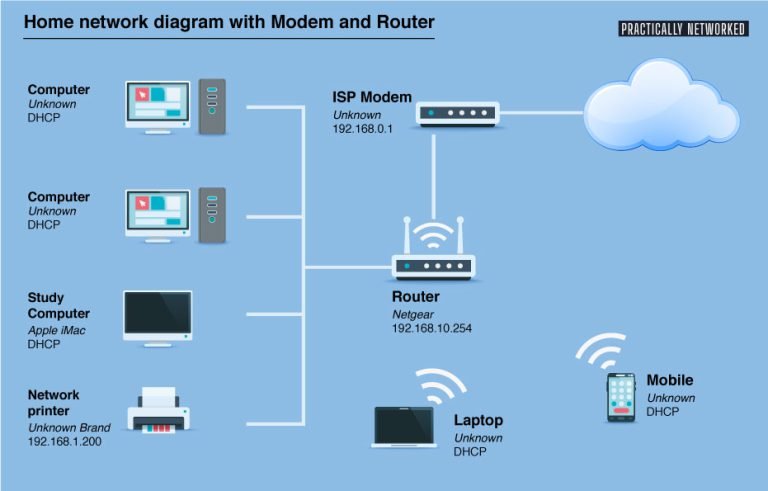
Setting up a home network from scratch does not require a networking degree. This guide walks through choosing a router, positioning it correctly, securing your Wi-Fi, and wiring up devices that need the fastest speeds.