How to Factory Reset Windows 11: Full Guide for Every Situation
Windows 11 has a built-in reset feature that ranges from a quick software refresh to a complete wipe that makes the drive unrecoverable. Choosing the right option depends on your goal: fixing a misbehaving system, starting fresh on a PC you are keeping, or handing it off to someone else. This guide walks through all three scenarios.
The Three Reset Options in Windows 11
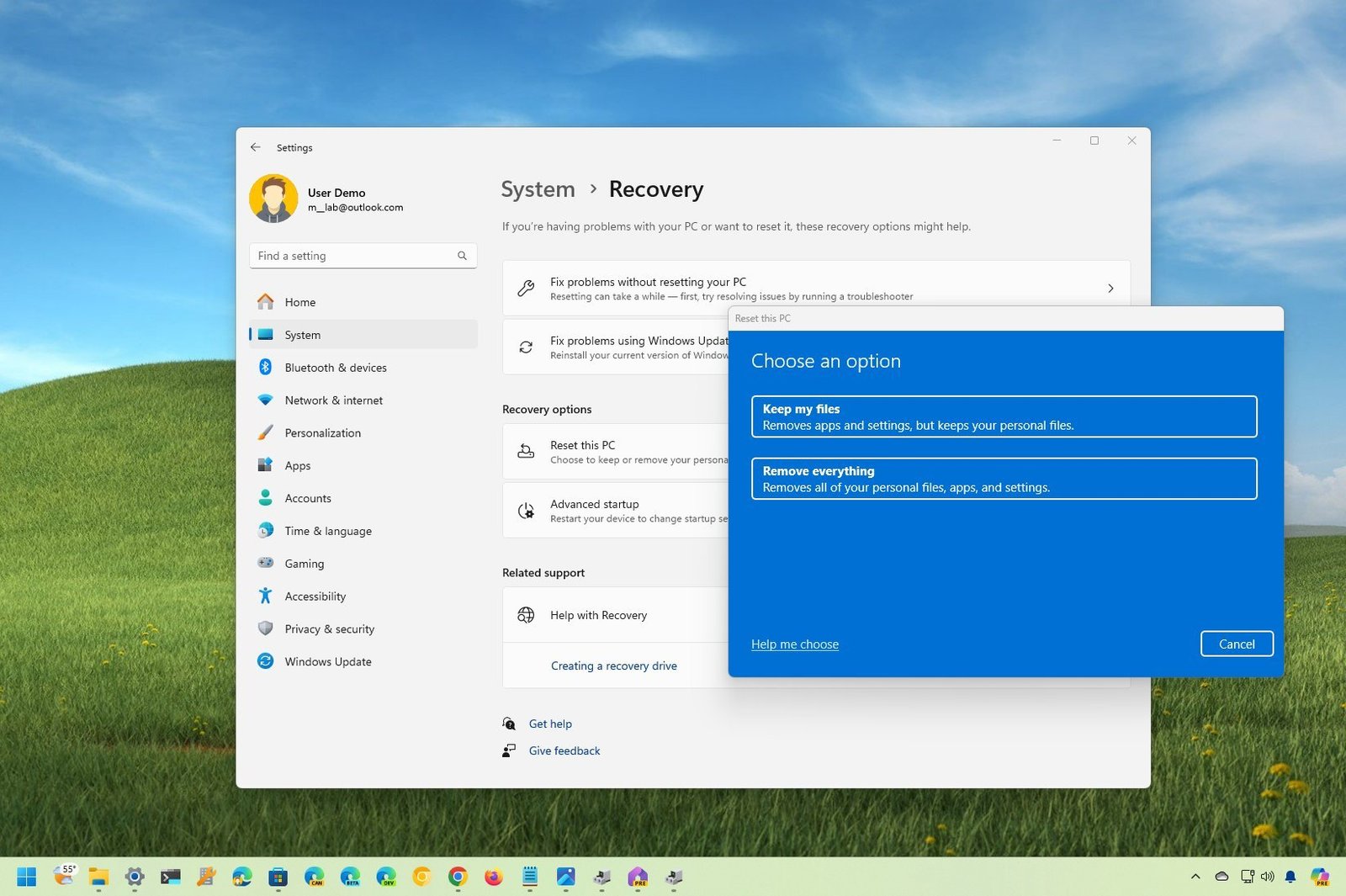
When you trigger a reset in Windows 11, you are offered two main choices:
- Keep my files – reinstalls Windows but keeps your personal files (Documents, Pictures, Desktop). Removes all installed apps and settings. Good for fixing system problems without losing data.
- Remove everything – wipes the drive and reinstalls Windows clean. No files, no apps, no settings. Required before selling or donating the PC.
Within “Remove everything,” there is a further option:
- Just remove my files – fast but recoverable with data recovery software
- Fully clean the drive – overwrites the drive, making data much harder to recover. Takes longer (30-60 minutes or more) but is the right choice before selling
Scenario 1: Fix a Broken System (Keep Files)
If Windows is misbehaving – crashing, running slowly after software changes, or failing to update – a “Keep my files” reset reinstalls Windows from scratch while preserving your personal documents.
- Go to Settings > System > Recovery.
- Under “Recovery options,” click Reset PC.
- Select Keep my files.
- Choose between Cloud download (downloads the latest Windows 11 from Microsoft, best option) or Local reinstall (uses files from the existing installation, faster but may reinstall bugs if system files are corrupt).
- Review the list of apps that will be removed, click Next, then Reset.
The process takes 30-60 minutes. The PC restarts several times. After it completes, Windows is fresh but your files are in place. You will need to reinstall all your applications.
Scenario 2: Full Fresh Start (Remove Everything, Keep the PC)
If you want a completely clean install – clearing years of accumulated bloat – back up everything first, then follow the same path as above but select Remove everything. Choose Cloud download for the cleanest possible result. Select Just remove my files under the drive cleaning option since you are keeping the PC yourself.
After resetting, Windows activates automatically if your license is a digital license tied to your Microsoft account. Sign in during setup and the activation is handled silently.
Scenario 3: Selling or Donating the PC (Secure Wipe)
Before handing a PC to someone else, you need to make your data unrecoverable. A standard reset leaves data that can be recovered with free software. The secure wipe option overwrites the drive.
- Go to Settings > System > Recovery > Reset PC.
- Select Remove everything.
- Select Cloud download.
- On the “Additional settings” page, click Change settings and enable Clean data (this is the secure wipe option). This overwrites the drive, not just removing the file table.
- Click Confirm, then Next, then Reset.
This process takes significantly longer – on a 512 GB SSD, expect 45-90 minutes. On an HDD, it can take several hours. The PC comes out of reset with a fresh Windows 11 install with no traces of your data, ready for the next owner to set up with their own Microsoft account.
What About the BIOS Password?
If you set a BIOS or UEFI password (for Secure Boot or drive encryption), clear it before handing off the PC. Enter the BIOS during startup (Delete or F2 at boot), navigate to Security settings, and remove any supervisor or user passwords. If you do not, the next owner may be locked out of BIOS settings or unable to reinstall Windows cleanly.
If You Cannot Boot into Windows
If the PC will not boot to the desktop, you can access the reset option from Windows Recovery Environment (WinRE). Power on the PC and force it to shut down three times by holding the power button during startup – on the third restart, Windows automatically boots into recovery mode. From there, go to Troubleshoot > Reset this PC and follow the same options above.
Alternatively, boot from a Windows 11 USB drive (see our clean install guide for how to create one) and use the installer’s repair or reset options from there.