How to Set Up a VPN: A Plain-English Guide for Every Device
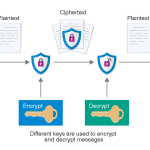
A VPN (Virtual Private Network) encrypts your internet traffic and routes it through a server in a location you choose, hiding your actual IP address from websites and your ISP. This guide explains when that is actually useful, which VPNs are worth paying for, and how to get one running on any device.
What a VPN Actually Does (and What It Does Not)
A VPN does:
- Encrypt traffic between your device and the VPN server – useful on public Wi-Fi in airports, hotels, and cafes
- Hide your IP address from websites you visit
- Prevent your ISP from seeing which sites you visit or selling your browsing data
- Allow access to geo-restricted content (streaming libraries, websites blocked in certain countries)
A VPN does not:
- Make you anonymous – the VPN provider can still see your traffic; you are trusting them instead of your ISP
- Protect against malware, phishing, or viruses
- Prevent websites from tracking you via cookies and browser fingerprinting
- Speed up your connection – it typically adds 5-20 ms of latency
When You Actually Need a VPN
Good reasons to use a VPN: public Wi-Fi (coffee shop, airport, hotel), accessing work resources remotely, accessing streaming content in another region while traveling, bypassing ISP throttling on specific services, and general privacy from ISP data collection.
Not good reasons: believing it makes you completely anonymous or immune to tracking online. Advertisers track you through cookies and browser fingerprinting regardless of VPN.
Choosing a VPN Service
Avoid free VPNs – the business model requires monetizing your data in some way, which defeats the purpose. Paid VPNs that consistently perform well in independent audits:
| VPN | Price | Strengths |
|---|---|---|
| Mullvad | €5/month flat | Best privacy; accepts cash; no account required |
| ProtonVPN | $4-$10/month | Open source; free tier available; Swiss jurisdiction |
| ExpressVPN | $6-$13/month | Fastest speeds; widest server network; easy apps |
| NordVPN | $3-$5/month | Good value; large server count; strong audits |
For most people, NordVPN or ProtonVPN hit the right balance of privacy, performance, and price. If privacy is the primary concern, Mullvad is the gold standard – it does not even require an email address to sign up.
How to Set Up a VPN on Windows
- Sign up for your chosen VPN and download their Windows app from the provider’s official website.
- Install the app and sign in with your account credentials.
- The app opens to a server selection screen. For general use, click Quick Connect to automatically pick the fastest server based on your location.
- For specific use cases (streaming Netflix US, accessing a specific country’s content), choose a server in the country you need from the server list.
- Click Connect. The app shows a green indicator when connected. Verify your connection at a site like whatismyip.com – you should see the VPN server’s IP and location, not your home IP.
How to Set Up a VPN on Mac
The process is identical to Windows – download the Mac app from the VPN provider’s site, install it, sign in, and connect. Most major VPN apps for Mac also have a menu bar icon that lets you connect and disconnect without opening the full app.
Alternatively, macOS has a built-in VPN client under System Settings > VPN that supports IKEv2, L2TP, and Cisco IPSec protocols. If your VPN provider offers manual configuration (most do), you can use this instead of the app – useful if you want to minimize installed software.
How to Set Up a VPN on iPhone
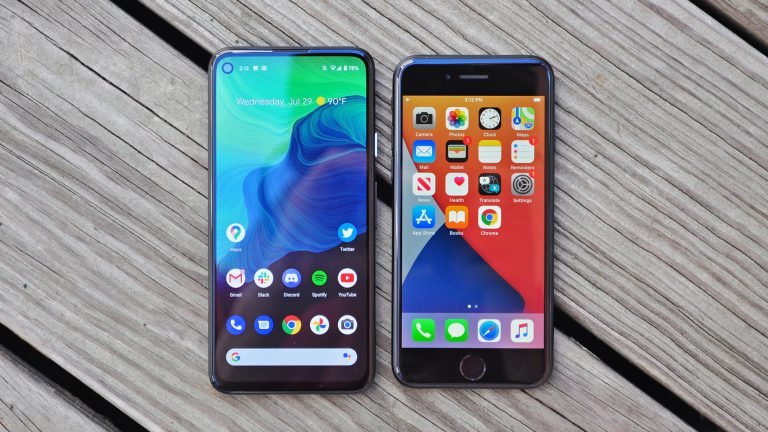
- Download your VPN provider’s app from the App Store.
- Open the app and sign in.
- Tap Connect. iOS will ask permission to add a VPN configuration – tap Allow.
- The VPN icon (a small “VPN” badge) appears in the status bar when connected.
You can also add VPN configurations manually under Settings > VPN > Add VPN Configuration using the credentials your provider gives you in their manual setup guide.
How to Set Up a VPN on Android
- Download your VPN provider’s app from the Google Play Store.
- Open the app and sign in.
- Tap Connect. Android will ask to add a VPN profile – tap OK.
- A key icon in the notification bar confirms the VPN is active.
Android also has a built-in Always-On VPN setting under Settings > Network & Internet > VPN that keeps the VPN connected at all times and blocks internet access if the VPN drops (kill switch behavior). Enable this if you rely on the VPN for privacy.
Router-Level VPN
Instead of installing a VPN app on each device, you can configure a VPN directly on your router. Every device on your network then uses the VPN automatically – including smart TVs and other devices that cannot run VPN apps. This requires a router that supports VPN clients (most do via OpenVPN or WireGuard). The setup process varies by router – check your provider’s router setup guides for your specific model.
If you use a VPN for security on the road alongside a password manager, our best password managers guide covers the top options for keeping your accounts secure across all your devices.