Printer Maintenance Tips: How to Make Your Printer Last for Years
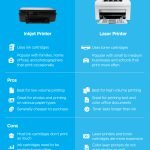
Most printer problems have straightforward causes: dried ink from infrequent use, accumulated paper dust from high-traffic environments, or ignored software updates that leave drivers out of sync. Preventing these problems takes less effort than fixing them. These tips cover both inkjet and laser printers.
Print Regularly (For Inkjet Owners)
Inkjet print heads can clog when ink dries in the nozzles during extended periods of non-use. The minimum print frequency to prevent clogging: at least one full-color test page every two to three weeks. Most inkjet printers run automatic head cleaning cycles when they power on if they detect they have not been used recently – this works but uses ink. Printing a full-color test page yourself uses less ink than a cleaning cycle and keeps the nozzles clear. If your printer sits in a corner and is only used once a month, add a recurring calendar reminder to run a test page.
Use Quality Paper
Low-quality paper produces more paper dust inside the printer, which accumulates on rollers and optical sensors over time. Paper dust on the feed roller causes misfeeds. Dust on the optical sensor inside the paper path causes paper detection errors. Use paper rated for your printer type: inkjet paper for inkjets, laser paper for lasers (which handles the heat of the fuser without warping). Generic office paper is fine for laser printers; for inkjets, choose paper with a “bright” rating of 96 or higher to maintain color accuracy.
Keep the Paper Tray Closed When Not In Use
Dust settling on paper in an open tray transfers into the printer during feeding, accumulating inside the paper path. Keep the paper tray closed when not printing – most printers have a cover for this purpose. Remove paper from the tray if the printer will sit unused for more than a week, as paper absorbs humidity from the air and can cause feed issues if it warps slightly.
Run the Built-In Print Head Cleaning (When Needed)
If you notice lines or gaps in inkjet prints, the print head needs cleaning. Every inkjet printer has a built-in cleaning utility accessible through the printer’s software or control panel menu. Run the standard cleaning cycle first – this uses a small amount of ink and resolves most clogging issues. If lines persist, run the deep cleaning cycle. Do not run deep cleaning repeatedly in succession without printing test pages between cycles to check whether the issue resolved – repeated deep cleaning wastes significant ink.
Keep the Printer Firmware Updated
Printer firmware updates fix bugs including wireless connectivity issues, paper detection errors, and compatibility problems with new operating system versions. Most modern printers check for firmware updates automatically when connected to the internet. Verify this setting is enabled in your printer’s settings menu. If your printer loses Wi-Fi connection frequently or shows unexplained errors after a macOS or Windows update, a firmware update is often the fix.
Clean the Exterior and Paper Path
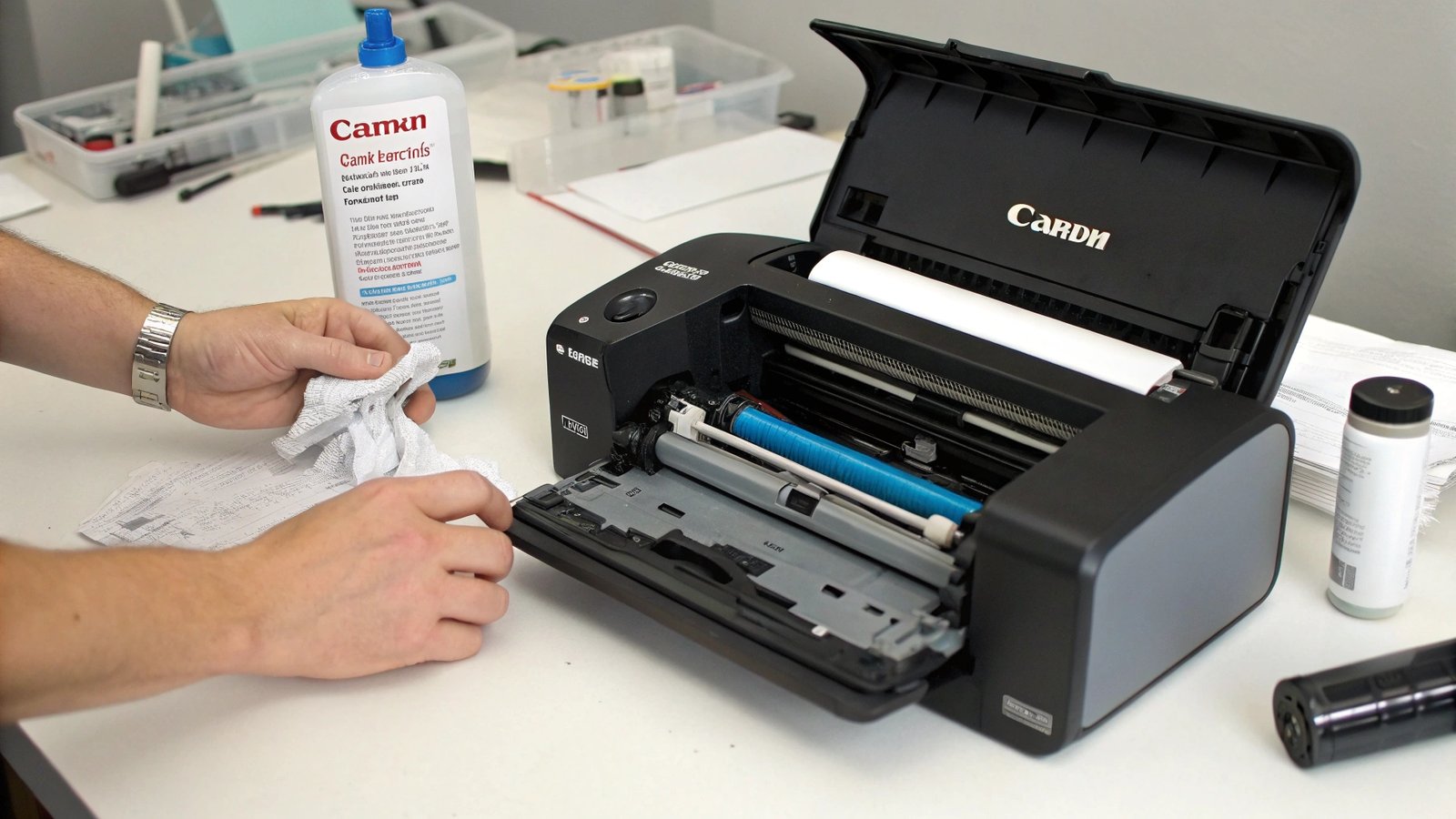
Once every three to six months: power off the printer, open all access panels, and use a dry microfiber cloth to wipe down the paper rollers (the rubber cylinders that feed paper). Compressed air from a can removes dust from the paper path without requiring disassembly. Do not use liquid cleaners inside the printer – moisture near inkjet print heads causes damage. For the exterior, a lightly damp cloth removes dust and fingerprints from plastic surfaces.
Address Paper Jams Carefully
Pulling jammed paper quickly and in the wrong direction tears the paper and leaves fragments inside the printer, which cause future jams. When clearing a jam: turn off the printer, open all accessible panels, and pull the jammed paper slowly in the direction the paper was traveling (forward, not backward). Check for torn paper fragments – leave any fragment inside and it will jam again. After clearing the jam, run a test print before resuming the original job.
For Laser Printers: Shake the Toner Cartridge
When a laser printer shows a low toner warning and prints start looking faded, remove the toner cartridge and gently shake it side to side four or five times to redistribute the remaining toner. This often extends the cartridge by 50-100 additional pages – enough to finish a project before purchasing a replacement. Do this over a sink or waste bin; toner powder is fine and can stain if the cartridge leaks.
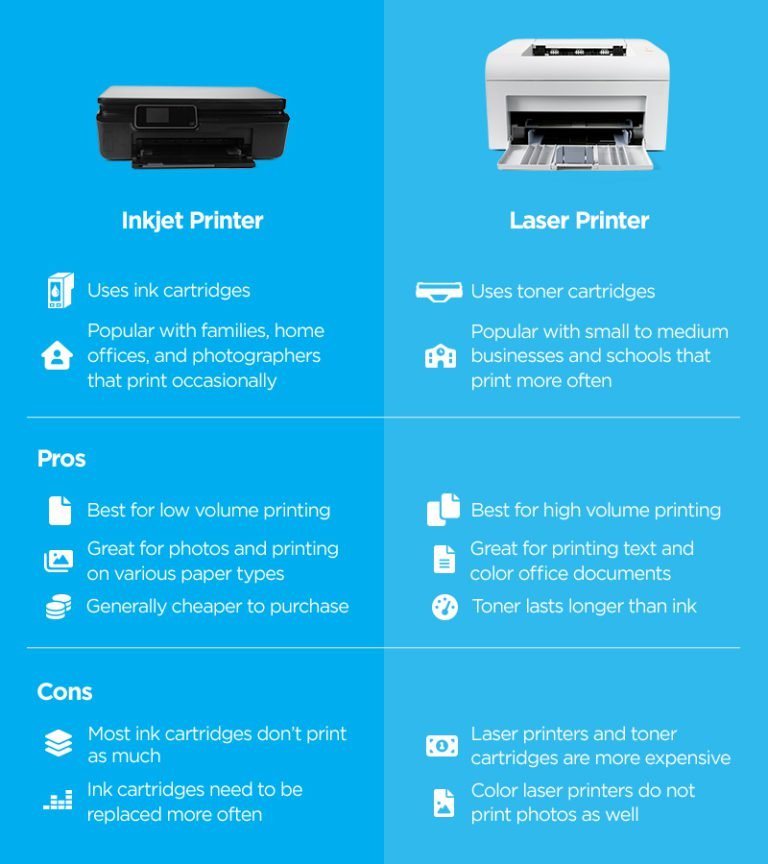
For guidance on which printer type suits your needs, read our laser vs inkjet comparison and our best home office printers guide.
The Bottom Line
Ten minutes of maintenance per quarter – a quick paper path cleaning, a firmware check, and a test print – prevents the majority of printer problems that frustrate users enough to replace otherwise functional hardware. Inkjet printers require more consistent attention (regular printing, head cleaning when needed); laser printers are more forgiving of infrequent use but still benefit from basic care. The printer that gets occasional attention lasts twice as long as one that gets none.