How to Password Protect a PDF: Free Methods on Windows, Mac, and Online
Password protecting a PDF encrypts the file so it cannot be opened without the correct password. It takes less than a minute with the right tool, and all of the methods below are free. This guide covers the best options on Windows and Mac, plus guidance on when online tools are safe to use and when they are not.
Method 1: Microsoft Word (Windows and Mac)
If your document starts as a Word file (.docx), you can add a password and export to PDF in one step – no additional software needed.
- In Word, go to File > Save As.
- Select PDF as the file format.
- Before clicking Save, click Options (Windows) or More options (Mac).
- Check Encrypt the document with a password and enter your password.
- Click OK and then Save.
The resulting PDF requires the password to open. This method uses AES-256 encryption, which is solid for most use cases.
Method 2: Preview on Mac (Free)
Mac users can password protect any PDF directly in Preview without installing anything:
- Open the PDF in Preview.
- Go to File > Export as PDF.
- Click Show Details to expand the options.
- Check Encrypt and enter a password in the Owner Password and User Password fields.
- Click Save.
The saved PDF is encrypted and requires the password when opened in any PDF reader. This is the fastest method on Mac and does not require any additional software.
Method 3: Adobe Acrobat Reader (Windows and Mac)
The free Adobe Acrobat Reader cannot add passwords – that requires Acrobat Standard or Acrobat Pro. If you have a subscription ($14.99/month), the process is: open the PDF, go to Tools > Protect > Encrypt > Encrypt with Password, set the password and options, and save.
If you do not have Acrobat Pro, the free methods above or the alternatives below are better options.
Method 4: LibreOffice (Free, Windows and Mac)
LibreOffice is a free, open-source Office suite that can export password-protected PDFs from its Writer, Calc, and Impress applications.
- Open your document in LibreOffice Writer (or any LibreOffice app).
- Go to File > Export as PDF.
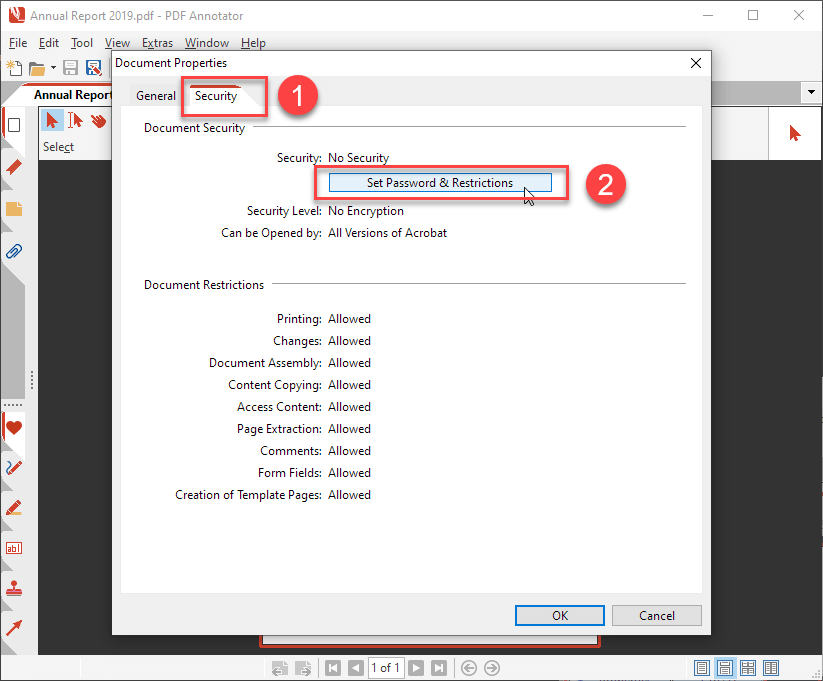
- In the PDF Options dialog, click the Security tab.
- Set an Open password (required to view the file) and optionally a Permission password (restricts printing, copying, and editing).
- Click Export and save the file.
Method 5: Online PDF Tools (Use With Caution)
Services like Smallpdf, ILovePDF, and PDF2Go let you upload a PDF and add a password through a browser with no software to install. These work and are convenient, but the trade-off is significant: you are uploading your file to a third-party server. Reputable services delete your file shortly after processing, but you are still trusting them with your data during the upload and processing window.
When online tools are safe to use: documents that are not confidential, non-sensitive reports, publicly shareable content where you just want a password for access control rather than genuine security.
When to avoid online tools: contracts, medical records, financial documents, tax forms, legal agreements, anything containing personal identifying information or sensitive business data. Use one of the offline methods above for these.
Understanding PDF Password Security
PDF encryption has two types of passwords:
- Open password (User password): Required to open the file at all. This is what most people mean by “password protecting” a PDF.
- Permissions password (Owner password): Restricts what the recipient can do with the file – printing, copying text, annotating, editing. The file can still be opened without this password; it just limits what actions are allowed.
PDF passwords are only as secure as the password itself. A strong 16+ character password using letters, numbers, and symbols is very difficult to brute-force crack. A short dictionary word is not – there are free tools that crack weak PDF passwords quickly. Use a strong, unique password and store it in a password manager.
How to Remove a Password from a PDF
To remove a password you already know: on Mac, open in Preview, enter the password when prompted, then go to File > Export as PDF without checking the Encrypt option. The new file has no password. On Windows with Adobe Acrobat Pro, open the file, go to Tools > Protect > Remove Security. In LibreOffice, open the PDF, export it again without setting a security password.
For more productivity tools that complement PDF management, our best PDF editors guide covers the top options for annotating, editing, and managing PDF documents across Windows and Mac.