How to Secure Your Home Wi-Fi Network: 8 Settings to Change Today
Most home routers ship with factory default usernames, weak passwords, and security protocols that were outdated years ago. Attackers know these defaults – there are lists of them online. This guide covers the eight most impactful settings changes you can make to harden your home network, in roughly the order you should do them.
How to Access Your Router Admin Panel
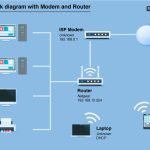
All of these settings are found in your router’s admin panel. Open a browser on a device connected to your Wi-Fi, type 192.168.1.1 or 192.168.0.1 in the address bar, and log in. Check the sticker on the bottom of your router for the default IP, username, and password if you have not logged in before. If those credentials no longer work, someone may have changed them – or you may need to do a factory reset to regain access.
1. Change the Router Admin Password
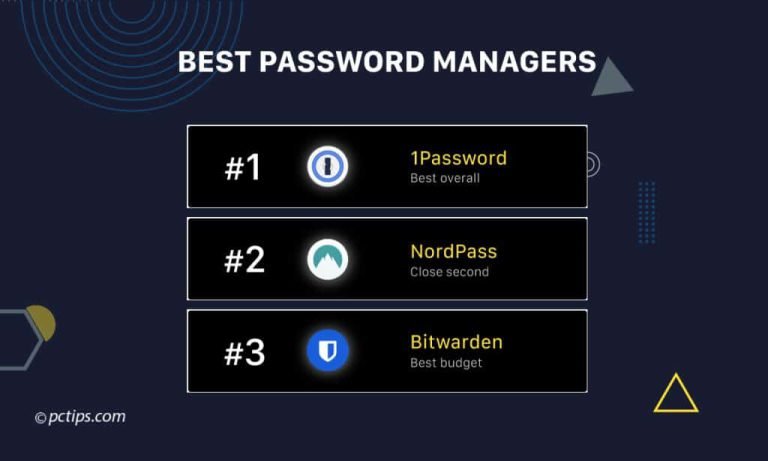
This is the most important step. Default admin credentials for every major router brand (Netgear, TP-Link, Asus, Linksys) are publicly documented. Anyone on your network can log into your router admin panel with these defaults and reconfigure everything. Find the admin password setting (usually under Administration, Management, or Advanced) and change it to something long and unique – at least 16 characters. Store it in a password manager.
2. Enable WPA3 or WPA2-AES
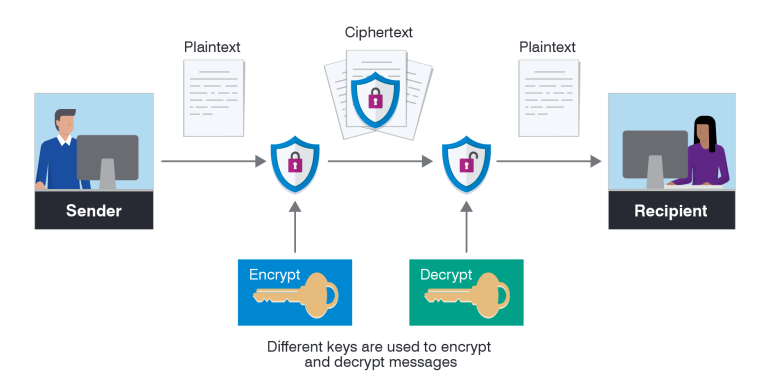
Wi-Fi security protocols determine how your wireless traffic is encrypted. The current options, from best to worst: WPA3 > WPA2-AES > WPA2-TKIP > WEP > Open. WPA3 is the newest standard and the hardest to crack – use it if your router and all your devices support it. If some older devices do not support WPA3, use WPA2/WPA3 transitional mode. Avoid WPA2-TKIP and never use WEP (it can be cracked in minutes with free tools).
Find this in your router’s wireless settings under “Security Mode” or “Authentication.”
3. Change Your Wi-Fi Password
The default Wi-Fi password on your router (if it has one) is printed on the device label – anyone who has physically been near your router knows it. Even if you have set a custom password, change it to something at least 12 characters long mixing letters, numbers, and symbols. Short dictionary-based passwords can be cracked through brute force.
4. Disable WPS (Wi-Fi Protected Setup)
WPS was designed to simplify connecting devices to Wi-Fi using an 8-digit PIN or a physical button. The PIN-based method has a well-documented vulnerability that lets attackers narrow it down to a few thousand combinations rather than 100 million – making it crackable in hours with tools like Reaver. Turn WPS off in your router’s wireless settings. The button-based WPS is less vulnerable but still worth disabling since you get no benefit from it once your devices are already connected.
5. Update Router Firmware
Router manufacturers regularly release firmware updates that patch security vulnerabilities. Many routers have auto-update options – enable this in the admin panel if it exists. If not, manually check for updates every few months. Log into the admin panel, go to the firmware or software update section, and check for new versions. A router running 3-year-old firmware is almost certainly running with known unpatched vulnerabilities.
6. Set Up a Guest Network for IoT Devices
Smart home devices – thermostats, cameras, smart speakers, light bulbs – are frequently compromised because manufacturers ship them with weak default credentials and slow security update cycles. Put them on a guest network isolated from your main network. This way, even if a smart bulb or cheap security camera gets compromised, the attacker cannot reach your computers, NAS drive, or other sensitive devices.
Enable the guest network in your router’s admin panel, give it a different name and password from your main network, and ensure “AP isolation” or “client isolation” is turned on (this prevents guest network devices from communicating with each other).
7. Disable Remote Management
Remote management allows you to access your router admin panel from the internet – not just from your local network. Unless you specifically need this for remote troubleshooting, disable it. It is an unnecessary attack surface that lets someone anywhere in the world attempt to log into your router. Find it under Administration or Remote Access settings and confirm it is off.
8. Use a Strong DNS Provider
By default, your router uses your ISP’s DNS servers, which can log your browsing queries and may be slower than alternatives. Switching to a faster, more private DNS provider takes 30 seconds and improves both privacy and sometimes page load times. Good options: Cloudflare’s 1.1.1.1 (fast, privacy-focused), Google’s 8.8.8.8 (fast, logs some data), or Quad9’s 9.9.9.9 (blocks malicious domains automatically).
Set the DNS in your router admin panel under LAN or DHCP settings – set Primary DNS to 1.1.1.1 and Secondary DNS to 1.0.0.1 for Cloudflare. This applies to all devices on your network without changing settings on each device individually.
Bonus: Check Who Is Connected to Your Network
In your router admin panel, look for a “Connected Devices” or “DHCP Client List” section. This shows every device currently connected to your network. If you see unfamiliar devices, your Wi-Fi password may have been shared without your knowledge – change it immediately, which disconnects all devices and requires them to reconnect with the new password.
For a broader look at setting up and securing your home network from the beginning, see our complete home network setup guide which covers equipment selection, router placement, and wired vs. wireless decisions.